



An app demo video is a short, focused walkthrough that shows your real interface, one clear user flow and the benefit at the end of it. Done well, it answers the only question a viewer has in the first ten seconds: “Will this solve my problem?” This guide covers what to show, how to script it, how long it should run, which specs the app stores require, and when it makes sense to bring in a production team.
TL;DR
- An app demo video shows how the app works, using the real interface and one coherent flow. A promo video explains why someone should care.
- Build the script around a problem, a solution, a short how-it-works sequence and one next step.
- Match length to placement: App Store previews run 15 to 30 seconds, while full walkthroughs can run several minutes.
- Record clean screens, keep each step to one action, and use captions and clear audio.
- Plan one demo per audience or workflow rather than one video that tries to cover everything.
Table of Contents
- What an app demo video is (and what it is not)
- Demo, promo or launch video: choosing the right one
- What your app demo video should show
- A script structure that works
- How long should an app demo video be?
- App Store and Google Play video requirements
- Recording, animating and editing
- What the best demo videos have in common
- Our perspective: a demo is a business tool, not a screen recording
- Bring in a production team when it matters
- A pre-production checklist
- Common mistakes to avoid
- FAQ
- Sources
What an app demo video is (and what it is not)
An app demo video is a visual walkthrough of an app’s features and user experience used to generate interest. Viewers see how the product behaves without installing anything or touching it. Showing the interface, features and benefits is the core job.
It is easy to confuse with a demo app. A demo app is a working version of the product, often loaded with sample data, that a prospect can use during a sales evaluation. The video is the presentation. The demo app is the test drive.
There is a third format worth knowing. Interactive demos let viewers click, tap and explore a simulated app at their own pace, while a video demo is a passive, pre-recorded screen walkthrough. Interactive demos can give you step-level engagement data. A video, however, travels further: it works on your homepage, in email, in sales decks, on social channels, in app store listings and at live events. Many teams use both, with the video as the first touch and the interactive version for serious evaluators.
Demo, promo or launch video: choosing the right one
Searches for app demo videos, app promo videos, product launch videos and SaaS demos overlap, but the formats do different jobs. A simple way to separate them: a demo video answers “how does it work?” by showing the flow, while a promo video answers “why should I care?”. Launch videos add a third purpose, which is creating attention around a specific moment.
| Format | Main question it answers | Best audience | Typical placement |
|---|---|---|---|
| App demo video | How does it work? | Prospects actively evaluating | Product page, sales emails, onboarding |
| SaaS demo video | Can it handle my specific workflow? | Buyers comparing options | Pricing page, sales follow-up, webinars |
| App promo video | Why should I want this? | Cold audiences | Paid social, homepage hero, app store page |
| Product launch video | What is new, and why now? | Existing users and press | Launch email, social, website banner |
One practical rule for SaaS: organize the demo around a real job to be done, such as completing a specific workflow, instead of a generic tour of every menu. A buyer in finance wants to see an invoice approved, not a tour of the settings panel. If you serve several roles, make several short demos. Our guide to how to create product demos that drive sales goes deeper on the sales side, and our look at the best video styles for SaaS marketing teams shows how demos fit next to other formats.
What your app demo video should show
The strongest demos are almost boringly clear. According to guidance on what makes demos convert, you should show the real interface, a coherent user flow, a key feature or use case, and the benefit it delivers. Everything else is a candidate for the cutting room floor.
Start with the problem, not the logo
Open on the situation your viewer recognizes: a messy spreadsheet, a missed appointment, a slow approval chain. Five seconds is enough. Then cut to the app. Viewers forgive a short intro, but they leave when the first 20 seconds are a brand animation.
Show one flow from start to finish
Pick the flow that proves your core value and show it without detours. If your app helps field teams log inspections, show opening the app, capturing a photo, tagging the issue and sending the report. Skip the settings, the profile page and the five other features. Those belong in separate, shorter videos or a help center.

Use real screens and realistic data
Polished mockups look good, but viewers can tell when they are not seeing the product. Use real builds with believable sample data: real-sounding names, plausible numbers, no “Test User 1.” If the build is not final, lock a version before recording so the footage does not go out of date the week after you publish.
End with one next step
A demo that ends with three options gets none of them. End with one next step, said once and shown on screen: start a free trial, book a live walkthrough, or download the app. Match the step to where the viewer is. A cold social audience is ready for “download,” while a prospect watching a sales follow-up is ready for “book a call.”
A script structure that works
A demo script is shorter than most teams expect. A common structure follows a problem, solution, how-it-works, next-step arc, with decisions about screens, transitions, narration or captions made in advance. Here is a template you can adapt.
- Hook (3 to 8 seconds). State the problem or the outcome in one sentence. Example: “Approving a purchase order should not take three emails.”
- Solution (5 to 10 seconds). Name the product and the one thing it does. “With the app, approvers sign off from their phone.”
- Walkthrough (the bulk of the runtime). Three to five steps, one action per step, each paired with one line of narration or one caption.
- Proof (optional, 5 seconds). A result, a number from your own customers, or a customer quote you have permission to use.
- Call to action (3 to 5 seconds). One step, spoken once and shown on screen.
Write for the ear and the eye
Narration should describe the benefit, not read the screen aloud. “Tap Approve” is visible on screen already. “Approve in two taps, from anywhere” adds value. Many viewers, especially on social feeds, watch with sound off, so add captions that carry the same information.
Build a storyboard before you record
For each script line, note which screen is shown, what the cursor or finger does, and what text appears. This one-page storyboard catches problems early: a screen that needs a data state you have not created, a transition that jumps, a step that takes eight taps when the story says two.
How long should an app demo video be?
There is no single correct length, because placement decides it. As a working guide, app store previews run 15 to 30 seconds, launch videos 60 to 90 seconds, and full walkthroughs several minutes. For more on how runtime relates to purpose, see our breakdown of how long a promo video should be.
A useful approach is to make a family of cuts from one shoot:
- A 15 to 30 second cut for app store pages, paid social and website headers.
- A 60 to 90 second cut for the product page and launch announcements.
- A longer walkthrough for sales follow-up, onboarding and webinars, ideally with chapters so viewers can jump to the feature they care about.
Planning these cuts before the shoot is cheaper than trying to carve a short cut out of a long recording afterward, because you can capture the same screens at the right pacing and framing the first time.
App Store and Google Play video requirements
If the video will appear on your store listing, the platforms set the rules, and rejected assets cost days.
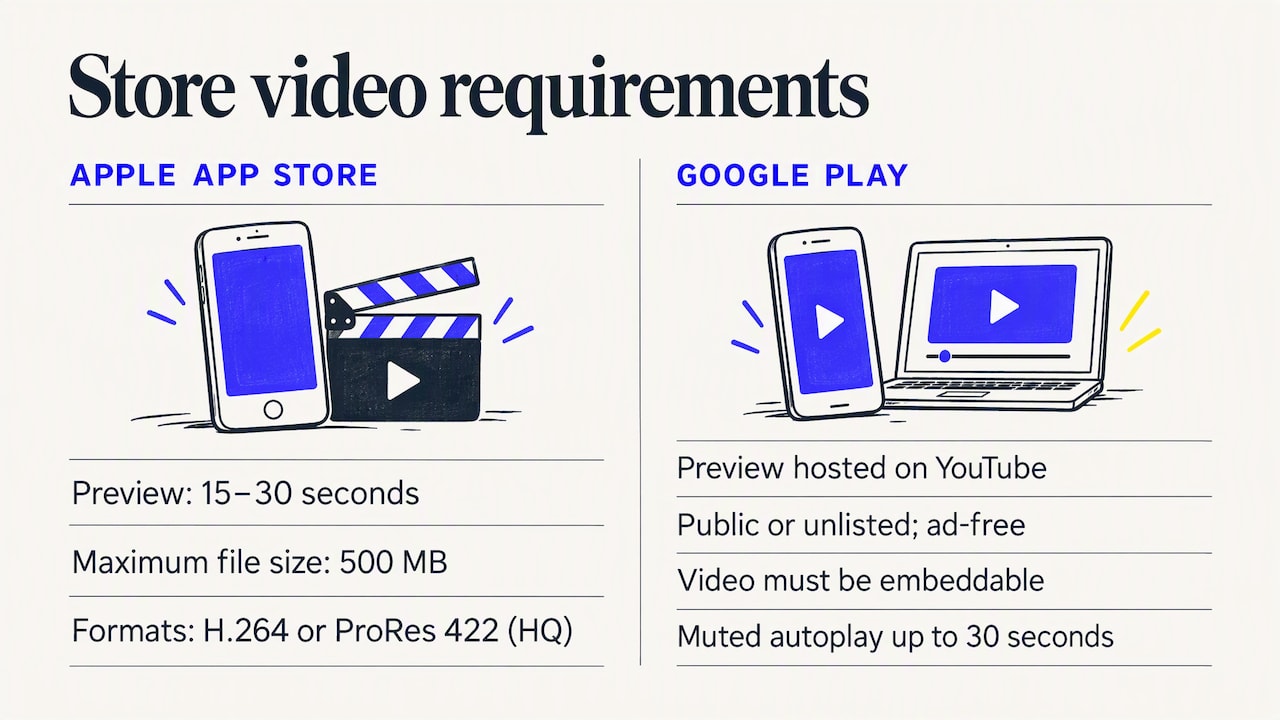
Apple App Store. App previews must be 15 to 30 seconds long, no larger than 500 MB, and use H.264 or ProRes 422 (HQ) formats. Check the same page for the current screen sizes and resolutions for each device, since they change as new devices launch.
Google Play. Preview videos are hosted on YouTube. According to Google, the video must be public or unlisted, ad-free and embeddable, and it may autoplay muted for up to 30 seconds. Google also recommends showing the actual in-app experience, and avoiding footage of people interacting with devices unless the app is used off-device.
The practical takeaway: the store preview is a different cut from your website demo. Make it with the first 30 seconds of watching in mind, put the best moment first, and use the real in-app experience throughout.
Recording, animating and editing
There are three common ways to capture app screens: a desktop emulator, native screen recording on the device, or a resized browser window for web apps. Each has trade-offs.
| Method | Strength | Watch out for |
|---|---|---|
| Native device recording | Authentic touch behavior and performance | Notifications, battery icons and clutter in the status bar |
| Emulator or simulator | Clean, repeatable, easy to control data | May not match real-device speed or gestures |
| Resized browser | Fast for web apps and SaaS dashboards | Can look like a website, not an app, if framing is careless |
After capture, the editing layer does most of the clarity work. You can annotate steps with text, voiceovers, zoom effects, blur or clickable hotspots, keeping each focused on one action. In practice, that looks like this:
- Zoom into the button or field the viewer should notice, then pull back.
- Blur private data such as real customer names, emails and account numbers.
- Hold each screen long enough to read. If a caption has eight words, give it at least two seconds.
- Cut dead time: loading spinners, keyboard entry and typing can be sped up or trimmed.
- Keep audio clean. Good audio matters more than most teams assume. A clear voice recorded in a quiet room, with consistent levels, beats a great screen recording with a muffled voiceover.
When animation beats screen capture
If your product is early-stage, the interface is changing weekly, or the value lies in something that happens off-screen (a delivery, an inspection, a service visit), motion graphics can carry the story better than raw footage. Animated UI sequences can also redraw screens consistently, so the video does not age every time a button moves. Our page on animated explainer video production explains how that approach works. For store previews, remember Google’s guidance about showing the actual in-app experience, so animation should supplement real screens, not replace them.
Mixing live footage with the screen
For an app that works in the physical world, such as logistics, healthcare scheduling or retail, a hybrid demo often works best: a brief live-action scene that sets up the problem, followed by the screen walkthrough. This is where professional lighting, sound and direction pay off, because the live-action portion is what makes the video feel like a brand asset rather than a software tutorial.
What the best demo videos have in common
Published collections of examples, such as CleverTap’s set of 15 app demos, group them into approaches like feature walkthroughs, onboarding videos, launch videos and feature announcements. Rather than copying a specific video, borrow the pattern that matches your goal:
- Feature walkthrough: one feature, one outcome, ideal for product pages and sales follow-up.
- Onboarding demo: shows new users their first win in the first minute. It reduces support tickets and early drop-off.
- Launch video: pairs the demo with a reason to act now: a new release, a new market, a new integration.
- Feature announcement: short, social-first, aimed at existing users.
Across all four, the shared traits are plain: the opening makes the problem clear, the screens are legible on a phone, each step does one thing, and the ending asks for one action. If you are building a library, see our examples in B2B video campaigns that drive demand for ideas on how demos sit inside a larger campaign.
Our perspective: a demo is a business tool, not a screen recording
We see the same pattern when brands come to us with a demo video that is not performing. The footage is accurate, the product is good, and yet nobody takes the next step. Almost always, the video was built around the product’s menu structure instead of the viewer’s goal.
Our approach is to start from the business outcome. Who is watching: a buyer, an existing user, an event audience? What do they need to believe by the final frame? What single action do we want next? Only then do we decide whether the right answer is a screen recording, an animation, live-action scenes, or a mix. That return-on-investment lens keeps creative decisions honest. A beautiful transition that delays the key feature by ten seconds is not worth it.
We also believe a demo is rarely one video. It is a set of assets: a short cut for ads and store pages, a mid-length version for the website, a longer walkthrough for sales, and still images pulled from the same shoot. Planning that set up front, with a nationwide network of crews and editors, is what turns one production day into months of usable content. And when the app needs a human story, a customer testimonial video alongside the demo often does more for trust than any feature list.
— Brandon V
Bring in a production team when it matters
A founder with a screen recorder can make a decent first demo. A professional team becomes worth it when the video represents your brand to buyers, investors, press or an event audience, or when you need several formats from one shoot. At V2 Visuals we handle the whole chain: strategy, scripting, live-action and animated production, editing and delivery of platform-ready cuts. You can see how we work on our video production services page, or read about our corporate video production for brand-level work. If you are planning a demo, a launch video or an ad creative set, talk to us about goals, audience and where the video will live, and we will scope the right production approach. Contact us through v2visuals.com.

A pre-production checklist
Before anyone presses record, confirm these items:
- One goal and one audience. Write them in a sentence each.
- One flow. The path from first screen to the “win” moment, written as numbered steps.
- A locked build. Stable app version, stable sample data, no personal information.
- A script and storyboard. Narration or captions, screen by screen.
- A placement plan. Which cuts, which lengths, which aspect ratios, which platforms. Check store specs if a preview is involved.
- Brand guidelines. Colors, fonts and logo usage ready for the editor.
- One call to action. Decided, worded and designed in advance.
- A measurement plan. Decide how you will tell whether the video worked: completion rate, clicks to trial, demo requests, or onboarding completion.
This list sounds basic, but skipping any one of these is the usual reason a demo needs a reshoot.
Common mistakes to avoid
- Feature tours. Walking through every tab teaches nothing. Pick one job to be done.
- Slow openings. Logos, long intros and background music with no message lose viewers before the product appears.
- Illegible screens. Phone UIs shrink in a landscape frame. Crop, zoom and use vertical framing for social placement.
- No next step, or too many. One action, shown and said once.
- Outdated footage. Build a refresh plan for each major release so the video does not contradict the product.
- Ignoring sound-off viewers. Add captions and make sure the story works without audio.
FAQ
What is the difference between an app demo video and a demo app?
An app demo video is a visual walkthrough of the app’s features and experience, which people watch without using the product. A demo app is a functional version of the application that prospects can use directly, often with sample data. Many companies use the video to attract interest and the demo app to close evaluation.
How long should an app demo video be?
It depends on where it appears. Store previews run 15 to 30 seconds on Apple’s App Store, and Google Play previews may autoplay muted for up to 30 seconds. Launch videos usually run 60 to 90 seconds, and full walkthroughs for sales or onboarding can run several minutes. Create a short and a long cut from the same shoot.
Should I use screen recording or animation?
Use screen recording when the product is stable and the interface is the selling point. Use animation or motion graphics when the interface changes often, when you need to show something off-screen, or when you want a consistent look across a campaign. Many strong demos combine both.
What should the call to action be?
Choose one step that fits the viewer’s stage: download, start a trial, or book a live walkthrough. Say it once and show it on screen. Offering several choices at the end splits attention and lowers response.
Can I upload a demo video to Google Play directly?
Not directly. Google Play previews use a YouTube URL, and the video must be public or unlisted, ad-free and embeddable. Review the current Play Console guidance before you publish.
Sources
- App preview specifications, Apple App Store Connect
- Add preview assets to showcase your app, Play Console Help
- How to Create App Demo Videos That Convert, CleverTap
- How to Create Mobile App Demos, Supademo
- App Demo Video: Why You Need It and How to Create One, Reteno
- App Demo Video Maker, angles.video
- SaaS Video Strategy: How to Choose the Right Video Type, Elma
- How to make a SaaS demo video: script and shot list, LaunchRepo